How to
Share your VMT Certifications and Badges on your LinkedIn Profile

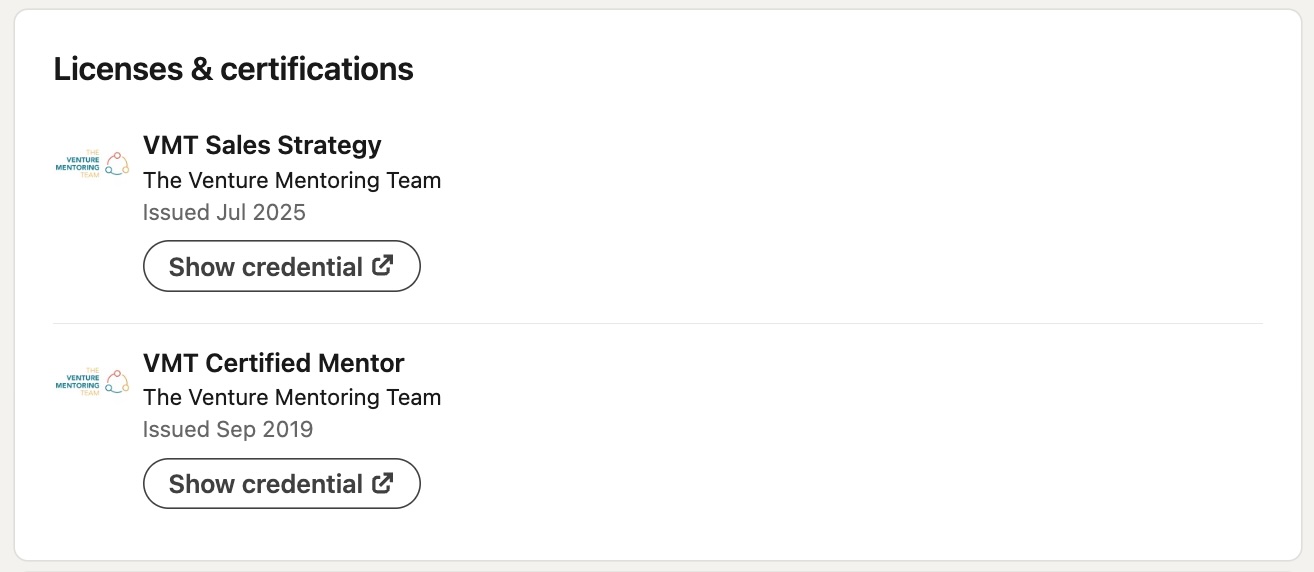
Add your VMT certifications and badges to the Licenses & certifications section of your LinkedIn profile, and be sure to share them in a post too.
Step 1: Log in to LinkedIn and click on your profile. This should take you to where you can edit your profile.
Step 2: Scroll down to the Licenses & certifications section and press the add icon (plus sign).

Step 3: This will pop up the add license or certification dialog box. Enter the following:
Name: VMT Certified Mentor or VMT Sales Strategy
(Enter the name of the badge you have achieved)
Issuing Organization: The Venture Mentoring Team
Begin entering The Venture and you will see a list pop-up, select The Venture Mentoring Team

Issue Date: Select the Issue Month and Year
Expiration Date: Leave it blank
Credential ID: Leave it blank
Credential URL: Cut and Paste this URL -
Press the SAVE button at the bottom of this pop-up dialog box.
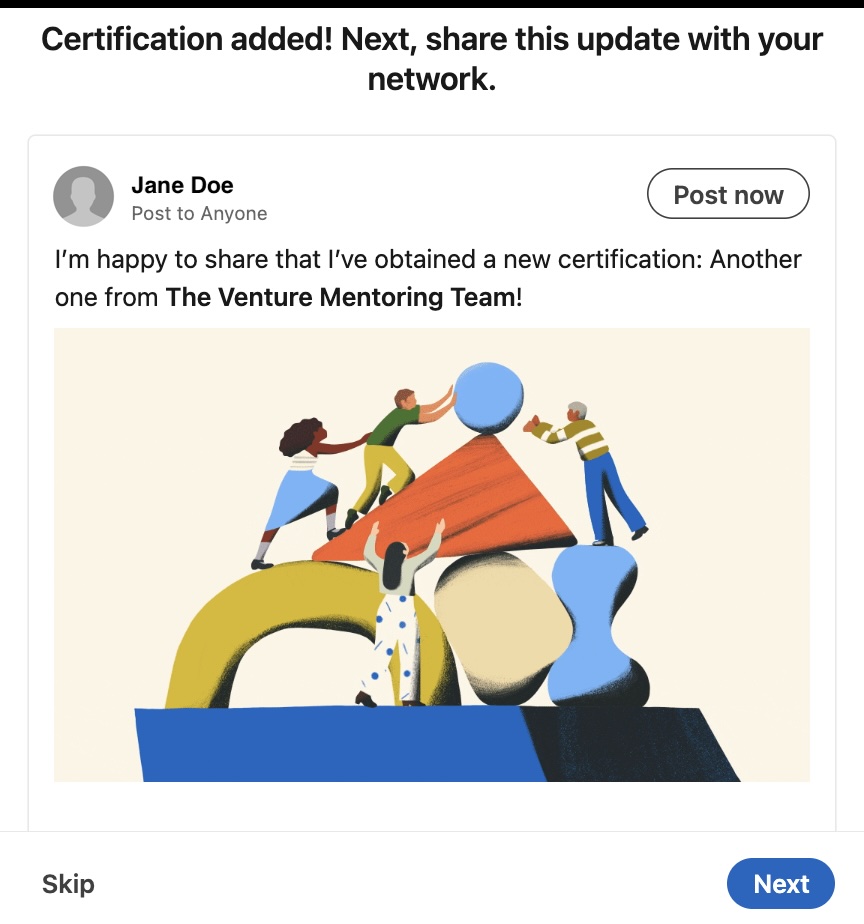
Step 4: Share your news!